This page is the technical reference for a security review of OpsCanvas MCP, the Operator edition. For the summary, see the Security and Trust Center. For anything not covered here, email security@opscanvas.ai.
Architecture
OpsCanvas is an app, not a container. You install it from npm and run setup:
npm install -g @opscanvas/opscanvas
opscanvas setup
It runs on macOS, Linux and Windows x64 with Node 22.13 or newer. Setup does three things:
- places the OpsCanvas program at a standard location and verifies it (see Software integrity);
- runs a small background service under your user account;
- registers a local MCP server with the AI tools you choose. The MCP configuration is one command that starts the OpsCanvas program, so any MCP-capable tool can connect and administrators can manage it like any other MCP server.
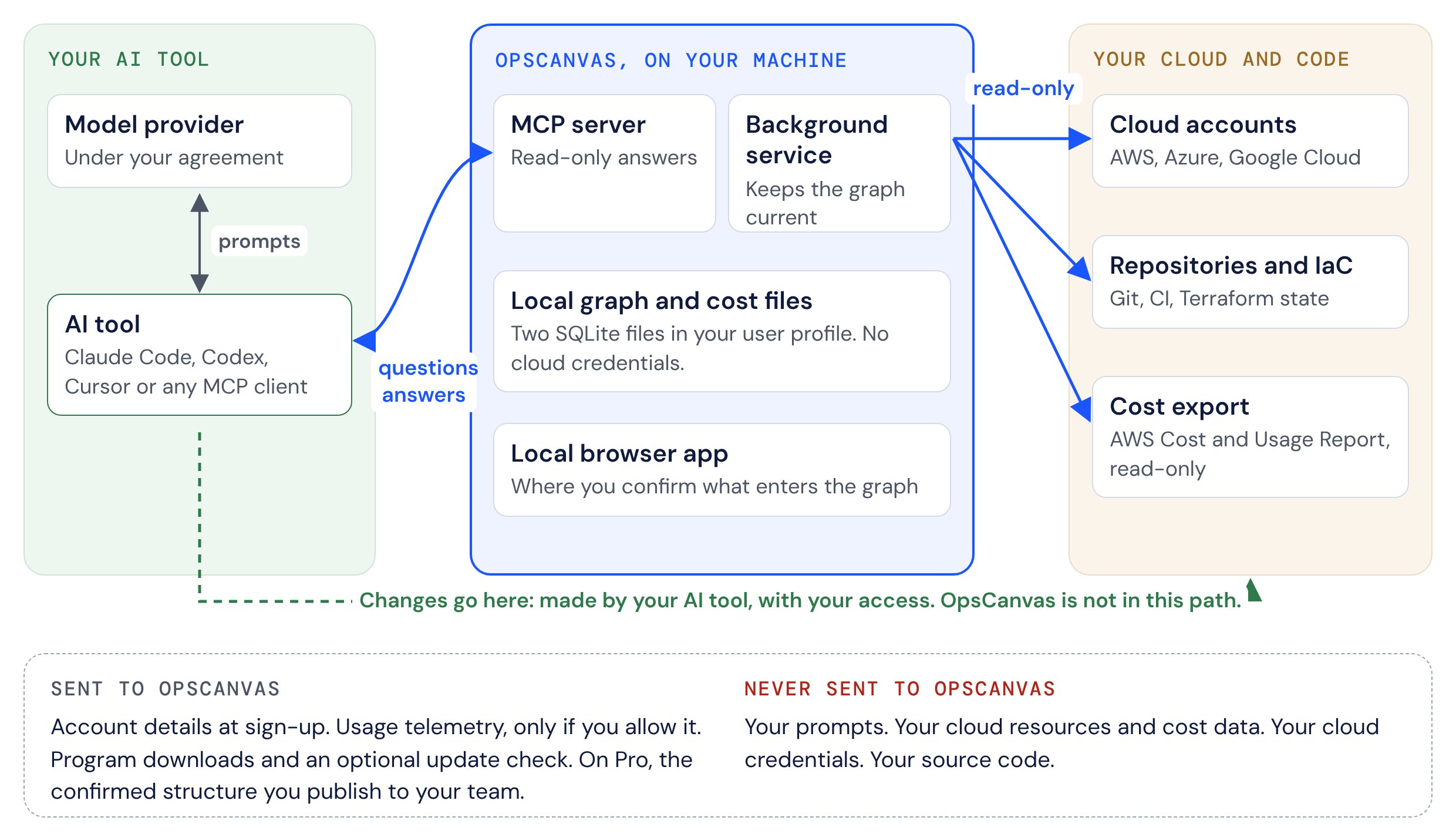
Your AI tool calls OpsCanvas tools for context. Any change to your cloud is made by your AI tool itself, with your access and under its own approval settings. OpsCanvas is not in that path.
Data storage
OpsCanvas keeps all of its data in one folder in your user profile. opscanvas uninstall prints its location, and we can share the exact locations for a managed deployment on request. The folder holds two SQLite files:
- The graph: applications, services, environments, repositories, deployments and cloud resources. Typically a few megabytes.
- Cost data: imported from your Cost and Usage Report export. Three months are kept by default, which stays under about 5 GB for an estate of 50,000 resources. Retention can be extended, and storage grows in proportion to the history kept.
Neither file holds your cloud credentials or secrets. If you set up cost data, the folder also holds the read-only certificate described in Cost setup permissions.
What leaves your machine
OpsCanvas itself makes these connections, and only these:
| Destination | Purpose | What is sent | How to control it |
|---|---|---|---|
packages.opscanvas.io | Download the program file for your platform on first run and after upgrades | A standard download request | Required to install. Set OPERATOR_BINARY_BASE_URL to use an approved internal mirror. |
registry.npmjs.org | Check whether a newer public release exists | A request for the latest version of @opscanvas/opscanvas | Turn off with opscanvas setup --no-update-check |
OpsCanvas account service, user-svc.opscanvas-prod.production.opscanvas.io | Registration; usage telemetry if enabled; feedback you choose to send | Account details you enter; telemetry events; your feedback text | Telemetry is asked when you run opscanvas setup. Answer no, or change it later in the app. |
app.opscanvas.io | Sign-in, and Pro team graphs | Your sign-in. On Pro, the confirmed structure you publish (see Pro team graphs). | Used only when you sign in or work in a Pro team |
All connections use HTTPS. OpsCanvas honors HTTPS_PROXY and NO_PROXY.
Reads of your cloud and code go directly from your machine to those providers (for example AWS, Azure, Google Cloud and your Git host), using the identities you approve. They do not pass through OpsCanvas.
Never sent to OpsCanvas: your prompts, your AI tool’s answers, cloud resources, cost data, source code and credentials. On Pro, the confirmed structure you publish syncs to your team’s workspace on servers OpsCanvas hosts; see Pro team graphs.
Usage telemetry
Usage telemetry is pseudonymous. Each event carries:
- a random install ID, created on your machine;
- the event type: a setup run, an identity found, approved or removed, an OpsCanvas tool call, or a fixed diagnostic reason;
- the OpsCanvas tool name and the cloud provider name (for example
aws), where relevant; - for some diagnostics, the name of your AI tool;
- the OpsCanvas version and your operating system.
Events never carry prompts, answers, account or subscription IDs, resource names, identity names or file contents. When telemetry is off, nothing is sent at all. Sending never blocks or slows a tool call.
Registration details, including your email address, are kept separate from telemetry and are not linked to it.
Credentials and identities
OpsCanvas uses the cloud identities you approve, such as AWS SSO profiles or an Azure login, in place on your machine. It never collects, stores or transmits your credentials. An identity found on the workstation is not usable until you approve it in the app, and you can remove it at any time.
Identities your AI tool uses are governed by that tool’s own approval settings, not by OpsCanvas.
Cost setup permissions
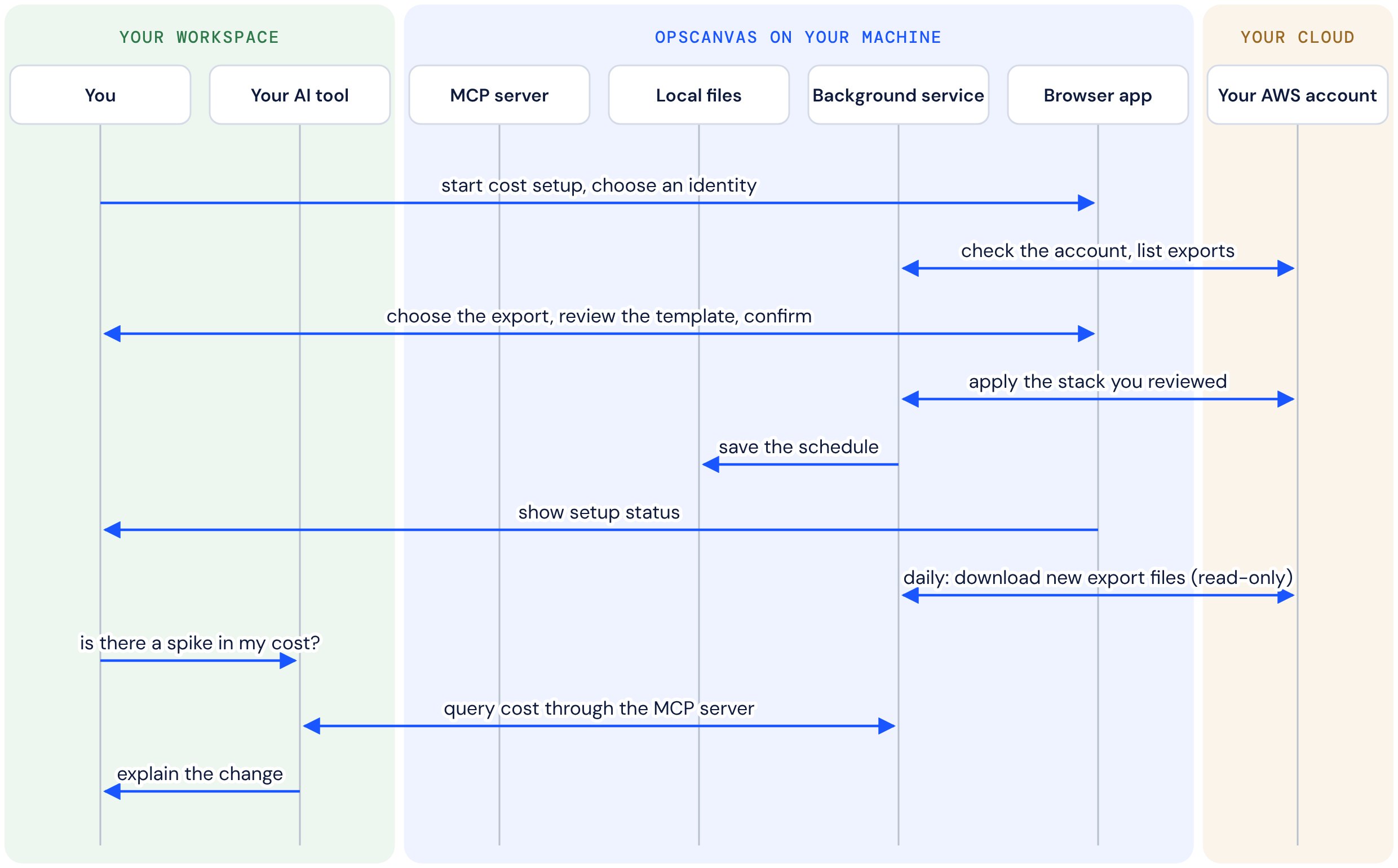
Cost setup runs in the local app. You choose the account, OpsCanvas finds an existing Cost and Usage Report export or helps you create one, and then shows you a CloudFormation template to review before anything is applied. After setup, the background service checks for new export files once a day at a time you set. A billing period’s data is replaced, not appended, when AWS restates it, so restated files do not create duplicates.
Reader policy. s3:ListBucket on the selected bucket, constrained to the configured export prefix, and s3:GetObject and s3:GetObjectVersion on that prefix. When the export is encrypted, kms:Decrypt is added for that exact KMS key. No S3 write or delete.
Reader trust. Setup creates a dedicated IAM role, an IAM Roles Anywhere trust anchor and a Roles Anywhere profile. OpsCanvas keeps a certificate and private key in its data folder and uses them to get temporary, read-only credentials for the export. Scheduled downloads do not depend on your personal AWS login.
Using an existing export. The stack does not take ownership of or modify the export, its bucket or its KMS policies. The bucket or key owner may still need to grant access, especially across accounts.
Creating a new export. The delivery policy grants bcm-data-exports.amazonaws.com s3:PutObject on the dedicated bucket, constrained to the setup account and its export ARN pattern. This is the AWS delivery service’s write permission, not a reader permission. The bucket’s deletion and replacement policies are Retain.
Creating a new export outside us-east-1. A provisioning role trusted by AWS Lambda grants bcm-data-exports:CreateExport, TagResource, ListExports, DeleteExport, GetExport and ListTagsForResource. Create is constrained to the FOCUS_1_2_AWS table and source ID request tags; export operations are scoped by export name patterns and source ID tags, and ListExports uses *. The handler can write to its own log group, which keeps logs for 30 days. In us-east-1 a native AWS::BCMDataExports::Export resource is used instead.
Information flows
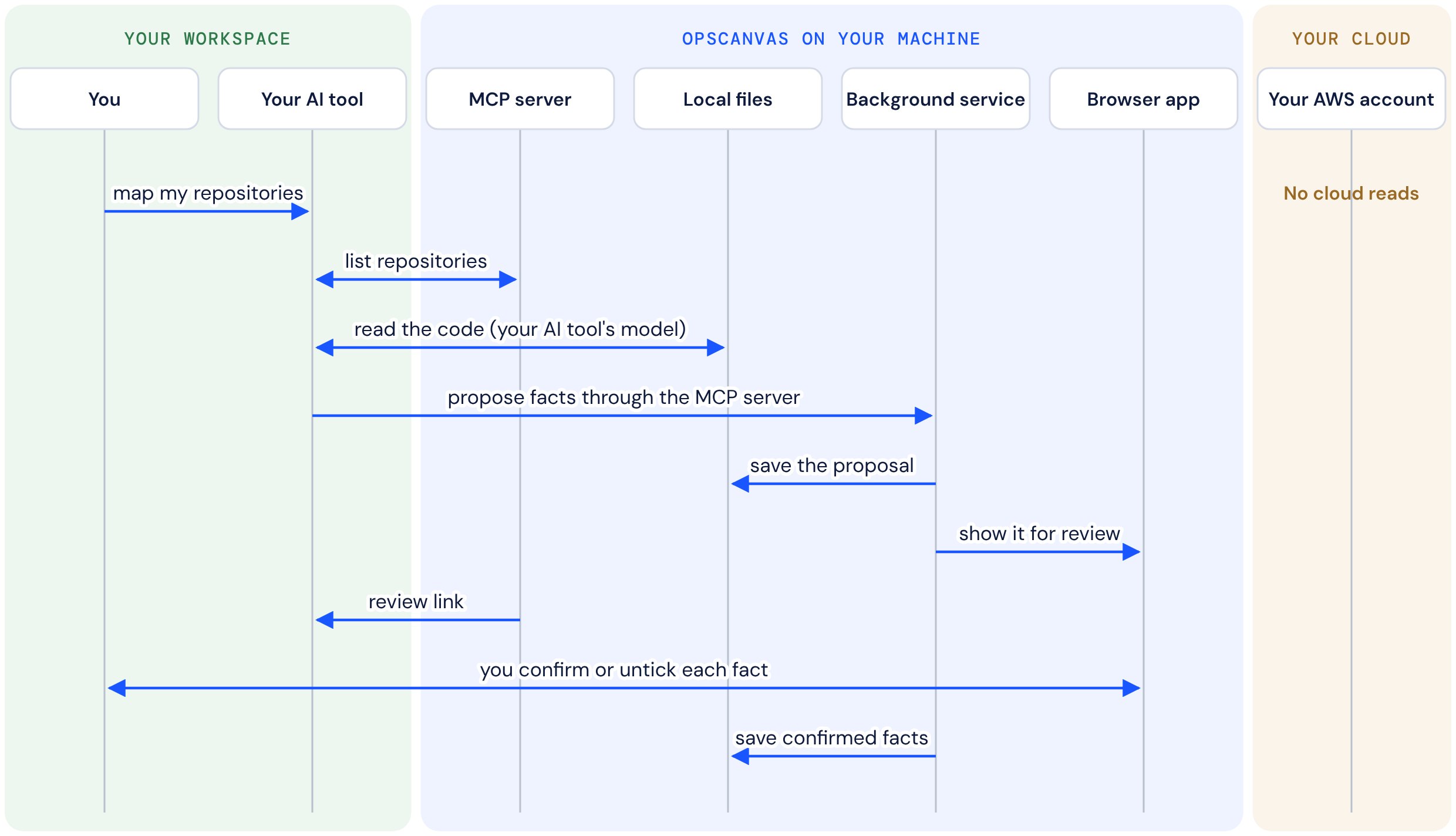
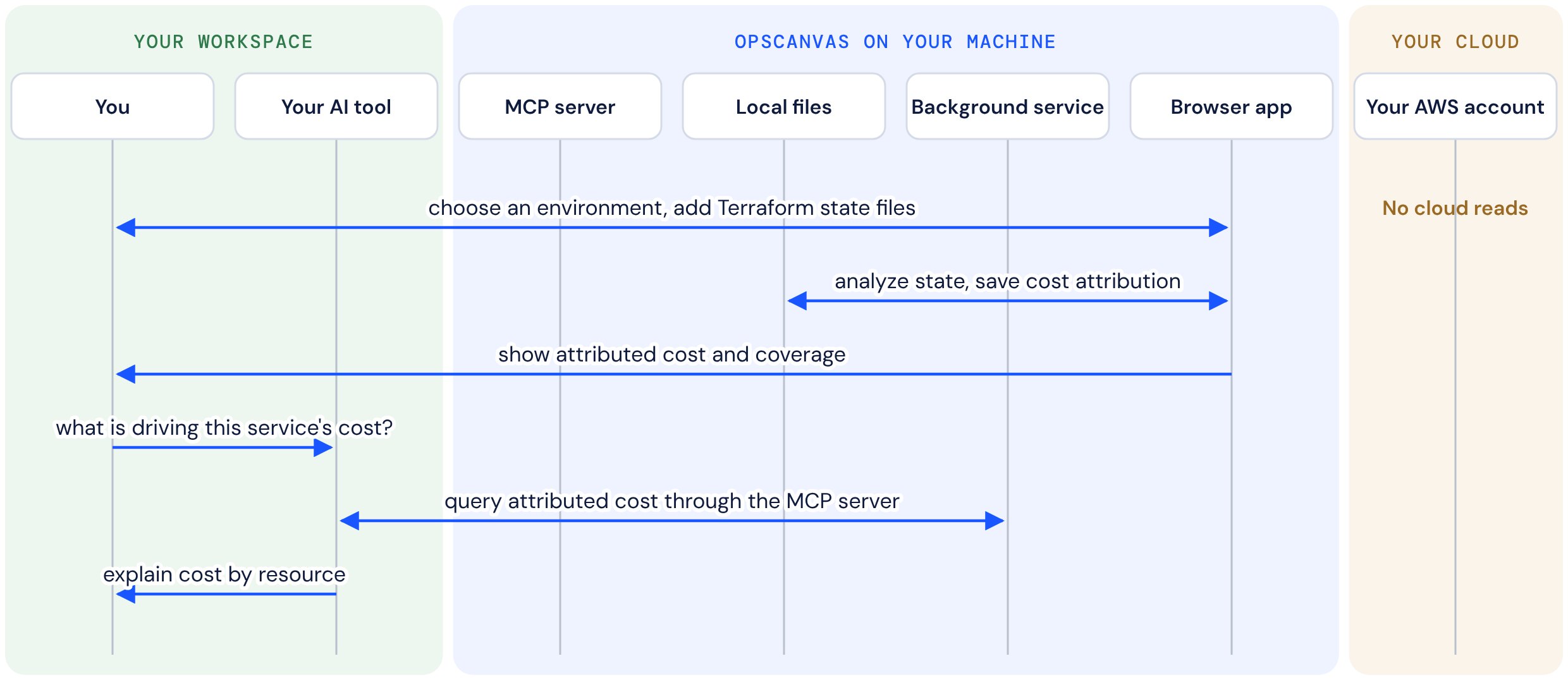
These diagrams show what happens on the workstation in three common tasks.
Repository discovery and confirmation
Your AI tool reads the code and proposes the application structure. Nothing is saved to the graph until you confirm it in the local app. There are no cloud reads in this flow.
Cost export setup and querying
Terraform state for cost attribution
Terraform state is analyzed on your machine. There are no cloud reads in this flow.
Pro team graphs
On Pro, each engineer can publish their confirmed structure to the team’s graph in your Pro workspace, on servers OpsCanvas hosts. A published record contains:
- applications, services, environments, service instances, repositories and core infrastructure;
- how they connect: which application a service belongs to, where it is deployed, which repository implements it;
- repositories identified by host and path, for example
github.com/acme/orders-api; - the evidence behind each fact, such as a file path and commit hash, and who confirmed it.
Cloud resources, cost data, pipelines, source code and credentials are not published. They stay on each engineer’s machine.
Software integrity
OpsCanvas is published as the public npm package @opscanvas/opscanvas. On first run it downloads one program file for your platform from packages.opscanvas.io and checks it against a checksum shipped inside the npm package before running it. For restricted or air-gapped networks, host the program file on an approved internal mirror and set OPERATOR_BINARY_BASE_URL to its base URL.
You upgrade through npm when you choose. The update check only displays a notice.
Removal and remote wipe
opscanvas uninstall unregisters OpsCanvas from your AI tools, stops and removes the background service, and removes downloaded program files. It deliberately keeps your data folder and prints its location. Delete that folder to erase all OpsCanvas data. Because the folder is at a known location, an administrator can delete it remotely. See Upgrade, uninstall and troubleshooting.
Managed deployment
- Managed install: deploy OpsCanvas as a managed MCP server through your AI tool’s administrator policy, from the public npm package or an internally packaged copy, alongside device management tools such as Intune.
- Several clients on one workstation: use a separate operating system user or virtual machine per client, each with its own install and identities.
- Just-in-time or time-limited access: OpsCanvas works through the identities you approve. Contact us and we will validate it against your access flow.
Reporting a vulnerability
Email security@opscanvas.ai with the details and steps to reproduce. We acknowledge every report and keep you informed while we fix it.